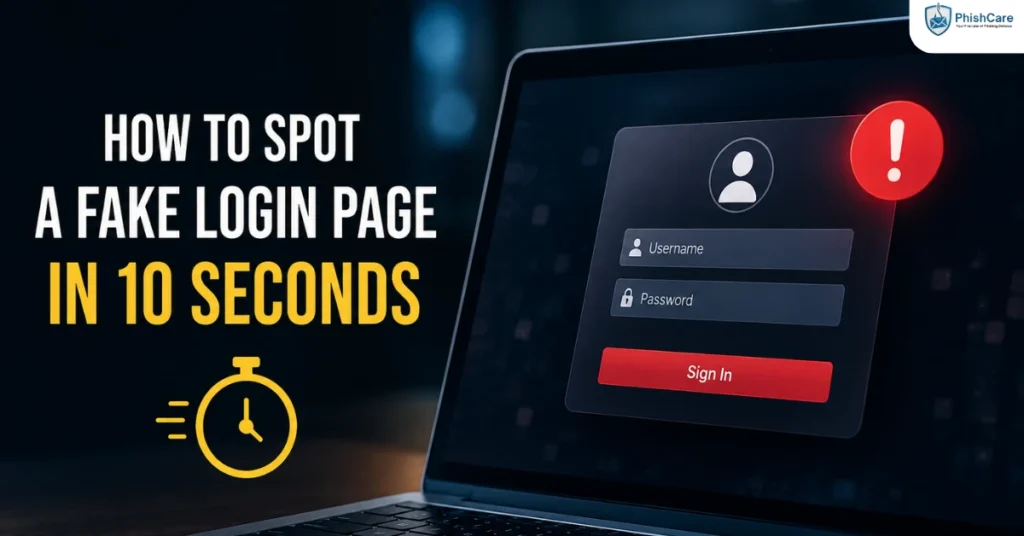
A fake login page only needs your attention for a few seconds. That is usually all it takes. Research based on the Verizon Data Breach Investigations Report has found the median person clicks a phishing link in about 21 seconds of receiving it, barely enough time to think, let alone inspect a page carefully. The good news is that spotting a fake login page does not require expertise. It requires a specific, fast checklist, one you can run through in about the same amount of time it took to get fooled in the first place.
Quick Answer
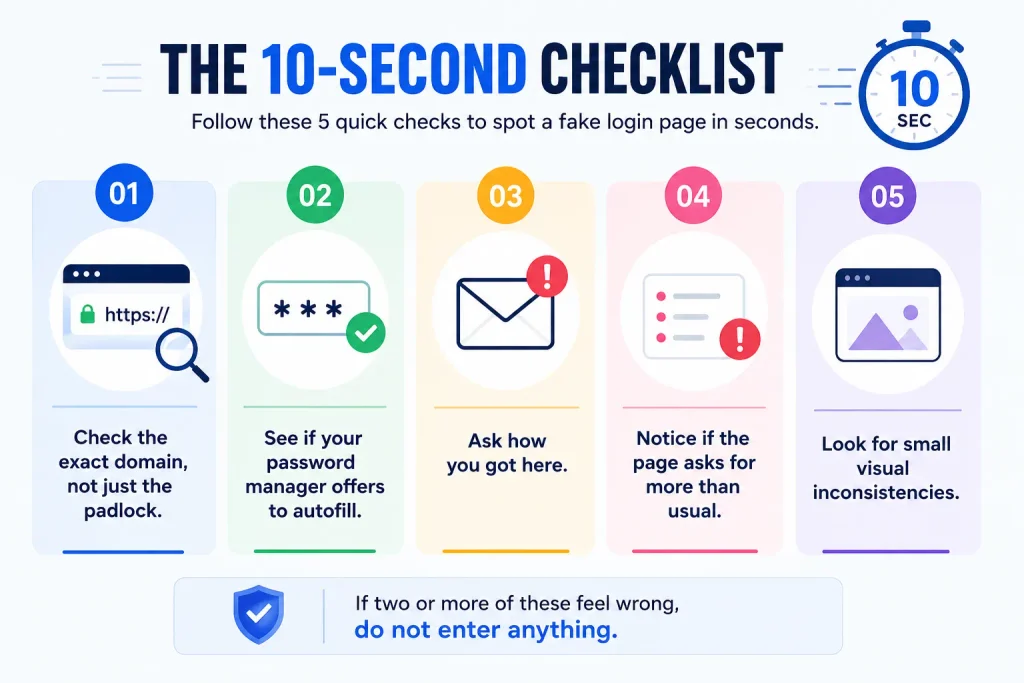
A fake login page can usually be identified in 10 seconds by checking five things: the exact domain in the address bar, whether a password manager offers to autofill, whether the page arrived through an unexpected message rather than your own navigation, whether it asks for more than a normal login requires, and whether small visual details like logos and fonts look slightly off. If two or more of these feel wrong, do not enter anything.
The 10-Second Checklist
1. Check the exact domain, not just the padlock.
A padlock icon and “https://” only confirm the connection is encrypted. They say nothing about who owns the page. Fake login pages routinely use HTTPS too. Read the actual domain character by character, since attackers rely on lookalike domains and typosquatting, a single swapped letter or an extra word, to pass a quick glance.
2. See if your password manager offers to autofill.
This is one of the fastest and most reliable checks available. A password manager checks the real underlying domain, not what the page visually displays. If you have a saved login for a service and the autofill prompt does not appear, treat that as a serious warning sign, even if the page looks completely correct.
3. Ask how you got here.
Did you type the address yourself or navigate from a bookmark, or did a link in an email, text, or QR code bring you here? Legitimate login prompts are usually something you seek out. Phishing pages are something a message pushes you toward, often paired with urgency: a suspended account, a failed payment, a document awaiting review.
4. Notice if the page asks for more than usual.
A normal login asks for a username and password. If the same page also asks for your card number, a one-time verification code, or security question answers all at once, that combination is a strong signal something is wrong.
5. Look for small visual inconsistencies.
According to Kaspersky’s guidance on identifying fake login pages, mistakes in text, awkward phrasing, pixelated logos, outdated designs, and slightly misaligned elements are common tells, since attackers rarely invest the same design effort as the real organization. An outdated copyright year in the footer or a slightly wrong shade of brand color is often enough to give it away.
Why the Usual Advice Isn’t Always Enough
Checking the URL has been the standard advice for years, and it still catches most phishing attempts. But it is not foolproof against every technique. Some fake login windows, known as Browser-in-the-Browser attacks, fake the entire popup window including a completely convincing address bar that is not connected to any real page at all. Against that specific technique, the URL check fails, which is exactly why the password manager autofill check matters as a second, independent signal, since it verifies the real domain regardless of what the page visually displays.
Similarly, some attacks such as the ClickFix attack do not present a fake login page at all, instead tricking a user into pasting and running a command directly. No single check catches everything, which is why running through several signals quickly, rather than relying on just one, is the more reliable habit.
What to Do If You Already Entered Your Credentials
If you realize after the fact that you entered a password on a page that turned out to be fake, act quickly:
1
Go directly to the real service by typing the address yourself or using a trusted bookmark, never a link from the suspicious message, and change the password immediately.
2
Revoke active sessions. Most major services, including Microsoft 365 and Google Workspace, allow you to sign out of all devices from account security settings, which helps remove any session an attacker may have already captured.
3
Enable or verify multi-factor authentication on the account if it is not already active.
4
Report the page to your organization’s security team if this happened on a work account, and consider reporting it to your email provider or the platform being impersonated.
Building This Habit Across an Organization
An individual checklist helps one person avoid one fake login page. Building the habit across an entire organization requires practice under realistic conditions, not just a one-time list of tips. Understanding what phishing is and how it works gives the underlying context, and running a phishing test for employees shows whether this checklist actually holds up when someone is moving quickly and under real pressure, which is a very different test than reading a list of tips in a calm moment.
Final Thoughts
Ten seconds is enough. Not to catch every detail, but to run through a handful of fast, specific checks that catch the overwhelming majority of fake login pages: the exact domain, whether a password manager recognizes it, how you arrived there, what it is asking for, and whether the small details look right. The habit matters more than any single check, since attackers keep finding new ways to defeat any one signal on its own.
FAQ
How can I tell if a login page is fake in a few seconds?
Check the exact domain in the address bar, see if your password manager offers to autofill your saved credentials, consider how you arrived at the page, notice if it asks for more information than a normal login requires, and look for small visual inconsistencies like outdated logos or awkward text.
Does the padlock icon mean a login page is safe?
No. The padlock and “https://” only confirm the connection is encrypted, not that the page belongs to a legitimate organization. The majority of phishing pages now use HTTPS as well, so the padlock alone is not a reliable safety signal.
Why doesn’t my password manager offer to autofill on some login pages?
A password manager checks the actual underlying domain rather than how the page visually appears. If it does not offer to autofill a login you have saved before, that is a strong signal the domain does not match, even if the page looks correct.
Can checking the URL always catch a fake login page?
Not always. Some techniques, such as Browser-in-the-Browser attacks, fake the entire address bar within the popup itself, making the URL appear correct even though nothing about it is real. Combining several checks is more reliable than relying on the URL alone.
What should I do if I already entered my password on a fake login page?
Go directly to the real service by typing the address yourself, change the password immediately, revoke any active sessions through the account’s security settings, and enable multi-factor authentication if it is not already active.
Content Reviewed By

Nawaz is a practising security analyst specializing in phishing simulation campaigns, employee awareness assessments, red team exercises, and ethical hacking. He leads phishing simulation deployments at PhishCare, a product developed by CyberSapiens, with hands-on experience evaluating and deploying phishing simulation tools across organizations in multiple industries and regions globally.
View LinkedIn ProfileFinal CTA
Reading a checklist and applying it under real pressure are two different things. See how your team actually responds with a free PhishCare demo account, no credit card required.